
AVALANCHE 360 RELEASE UPDATES!
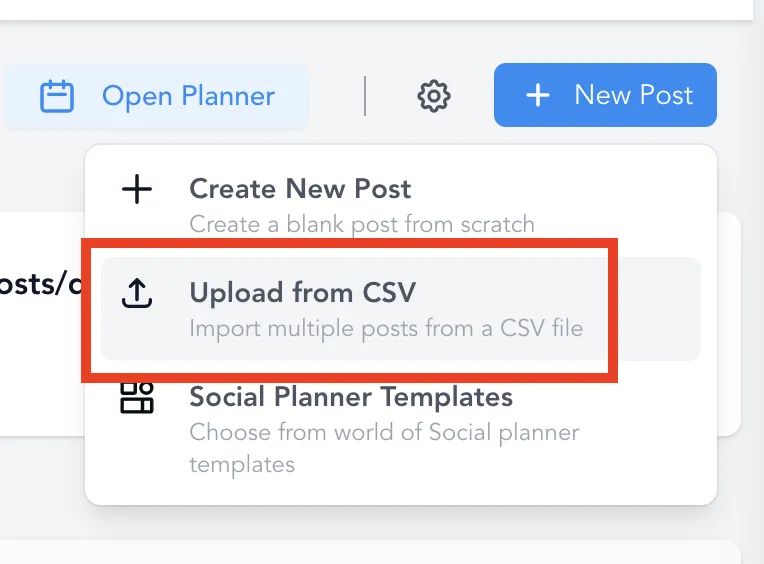
How to schedule Posts in Bulk on the Social Planner (CSV)
How to schedule Posts in Bulk on the Social Planner (CSV)
Scheduling Social Media posts in bulk with the help of a CSV file can be the most optimal time-saving technique for scheduling in advance for the social journey. CSV is a “comma-separated values” file that allows you to save your information in a structured way.
Bulk Scheduling Posts on the Social Planner:
As your Social Media Marketing grows and you have to post across various Social Media Platforms on a larger scale without manually doing it post by post, the Bulk Scheduling posts on the Social Planner capability will allow you to do just that.
You will need to make sure that the CSV file you import into the Social Planner follows a set of prerequisites.
1. Date and Time Column:
In this column, you can type in the date and time when you want to share your post. In this column, you must format the date exactly how you see it at the top of the column: YYYY-MM-DD HH:mm:ss (One space between the date and time). If the date column is empty, it will be considered in the Draft.
The Column Header of this column must be exactly as mentioned in the Sample CSV as shown in the video, it should be as follows:
postAtSpecificTime (yyyy-MM-dd HH:mm:ss)
It is highly recommended to have all the scheduled times be at least 10 minutes after the time when you are uploading the CSV.
For example, if the scheduled date/time for the post is 2023-10-14 15:00:00. This means that the CSV should be
uploaded no later than October 14th, 2023 at 2:50PM.
Please Note:
The schedule time formatting works in 24-hour format, not 12-hour.
2. Content Column
In this column, you can type in or paste what you want to appear as the caption of your post, you can add Hashtags too. The Column header of this column should be written as follows:
content
The caption must abide by the social media post character limit rules you are scheduling it for.
Please Note:
Facebook Page/Group - 62000 characters
Business Instagram Account - 2200 characters
LinkedIn Page and Profile - 3000 characters
Twitter Profile - 280 characters
GMB Location - 1500 characters
3. Preview link:
In this column, you can type the URL or paste the URL that you want to appear as the link preview of your post.
The Column header of this column must be written as follows:
link (OGmetaUrl)
Please Note:
If the other media rows like images, GIF or Video are filled in, they will override the link(OGmetaUrl). It will be appended to content column as a link.
4. Image Url
In this column, you can paste what you want to appear as the image of your post. The column header
should be written as follows:
imageUrls
You can add multiple image URLs with commas separated. The image link must be in proper formats like png or
jpeg/jpg and other aspects for image supported based on the social media platform. The maximum number of images supported is 10 image(s).
5. Gif Url
In this column, you can paste what you want to appear as the GIF of your post. The Column header of this column should be written as follows:
gifUrl
Please Note:
You must not fill in any other media-related column if you added a link here. (eg. link, imageUrls, videoUrls).
6. Video Url
In this column, you can paste what you want to appear as the video of your post. The Column header of this column must be written as follows:
videoUrls
You can add multiple Video URLs here comma separated. The maximum number of videos supported for one post is 10 videos at a time.
Please Note:
You must not fill in any other media-related column if you added a link here.
FAQ
What is the number of posts allowed via CSV at one time?
The number of posts allowed in CSV is 90 posts per CSV. You will need to divide that across all the Social outlets you are posting out to.
How can I solve the errors for posts?
Click on the icon at the list of posts with errors, it will expand to show the post preview along with the errors. It is necessary to solve the errors to post successfully.
What is the difference between CSV upload and post composer tag in list view?
Each post in Social Planner can be created with bulk scheduling with CSV and created from blank with post composer.
