
AVALANCHE 360 RELEASE UPDATES!
Company Object Live!
How to Group Contacts within an Organization using the 'Company Object' Feature
The Company Object feature is the ability to create a new entity called “Company” and map contacts under them. This can also be looked at as a grouping mechanism for a list of contacts, where a list of contacts can be mapped to a company and their consolidated activities can be tracked.
Let's learn how to add a new company:
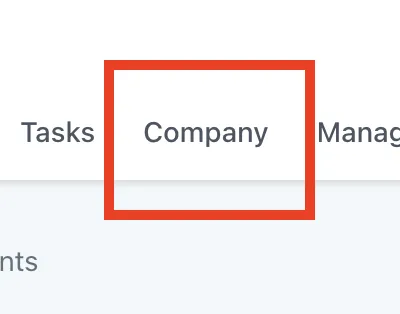
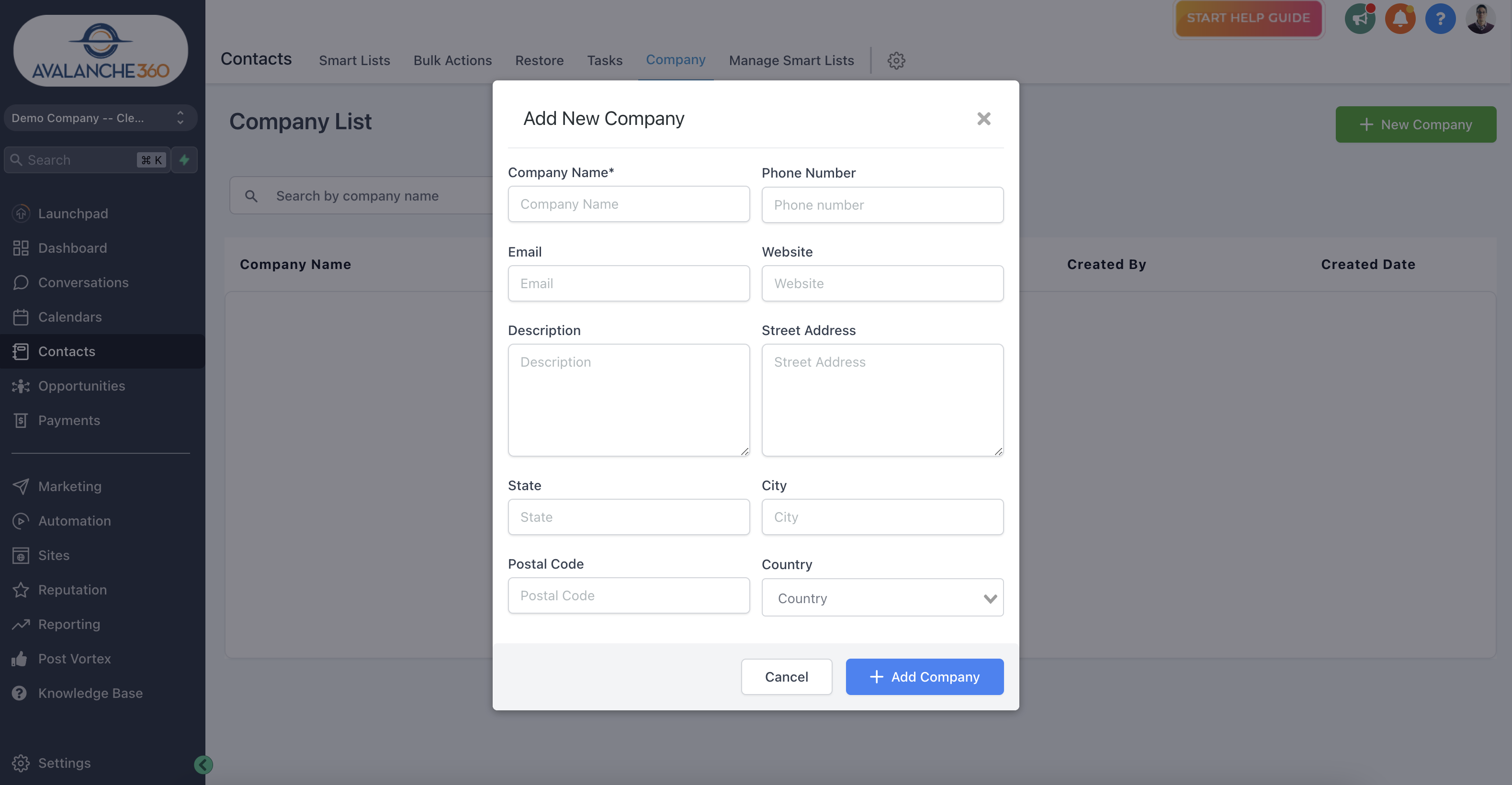
Navigate to Contacts > Company > Add New Company:

Add the company details:
Please note:
The following fields are to be filled out when creating a Company:
Company name (mandatory): Open text field
Phone number: Optional field
Email: Optional field
Website: Optional field
Description: Optional field
Street address: Optional field
City: Optional field
Postal code: Optional field
Country: Optional field
Validation: For mandatory fields only (Phone and Email are validated only for correct format, not checked whether they are actual phone numbers or E-mail addresses)
How to add Contacts to a company, once created:
At the moment the only way to enter contacts into a Company is by manually heading into their Company tab, Searching for a company, and then adding them to it:
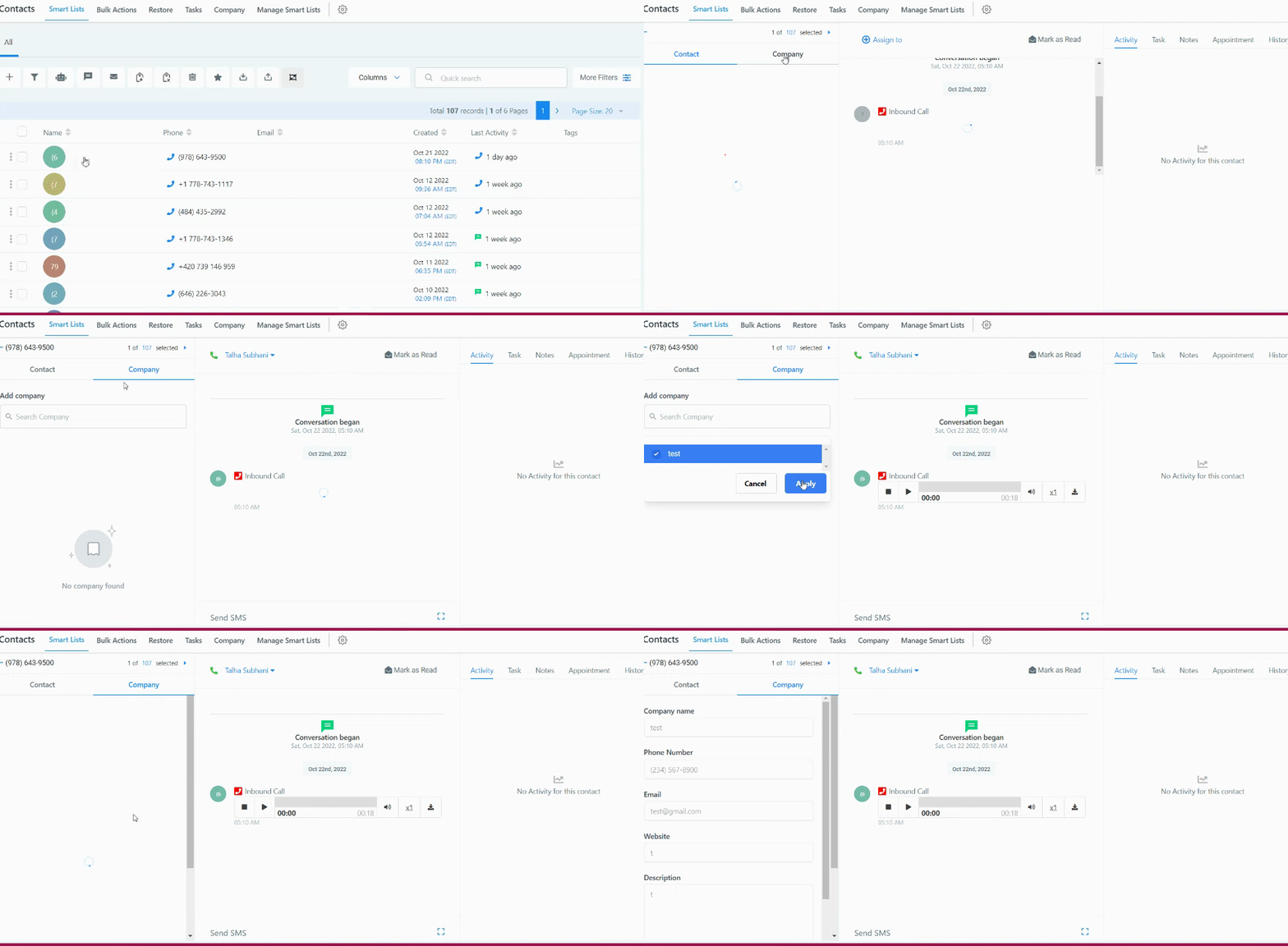
You can mark multiple contacts and then switch between them for ease of adding contacts to a company in bulk:

(We will be working on bulk adding contacts to a company in the coming months)
How to remove a contact from a company:
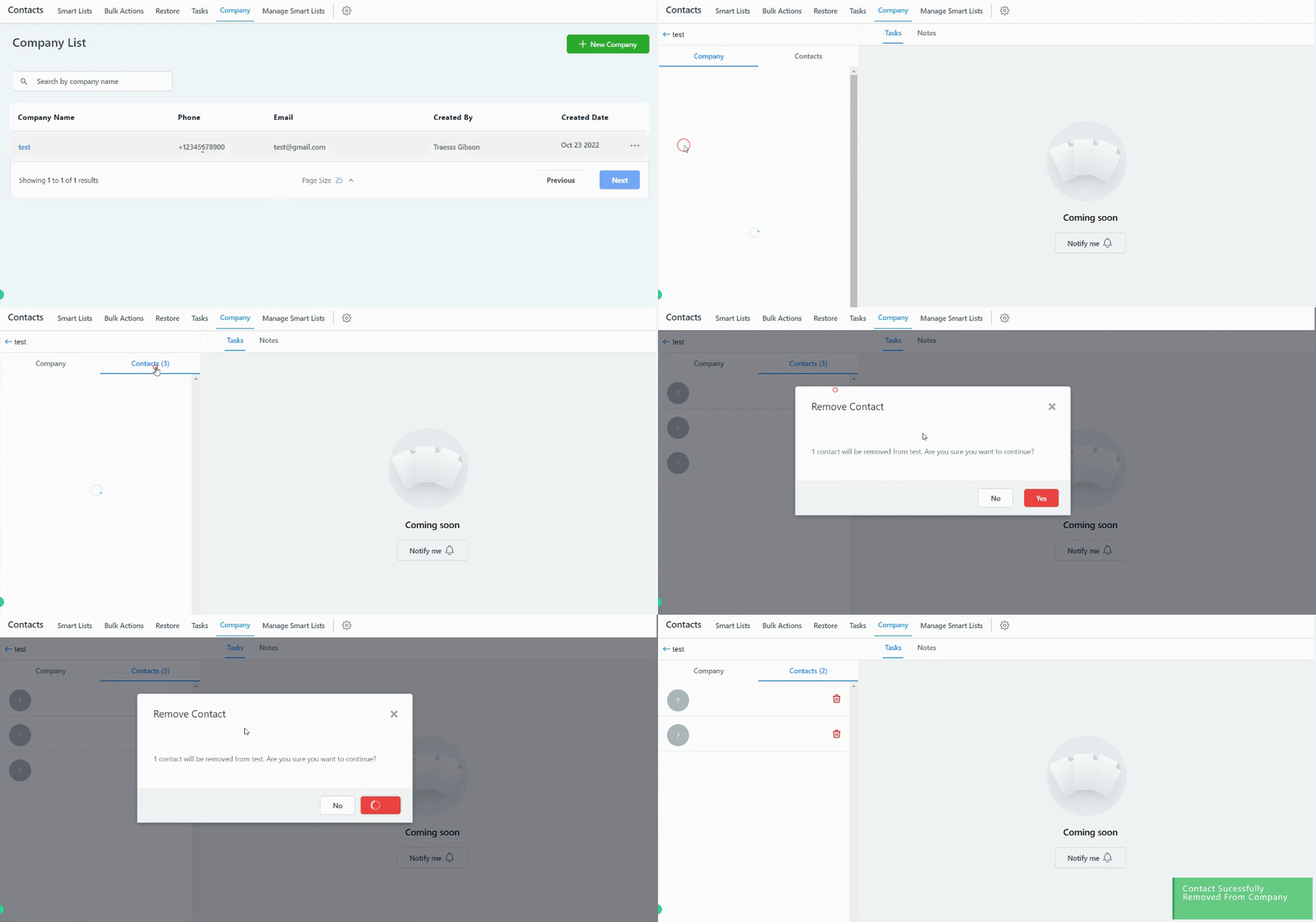
To remove a contact from a Company please head to the Company tab, click on the company you want to remove the contact from, Switch to Contacts inside the Company tab, Hit the Trash button next to the contact you want to remove from that Company, When prompted to confirm, Click on Yes.
Please note:
Removing a contact from a Company does not delete the contacts from your contacts list, it only removes the Company information from that contact's Company tab and removes them from the list of contacts in that company.